
How to Clear RAM Cache in Windows: 4 Proven Methods to Boost Performance
Clear RAM cache Windows effectively with our comprehensive guide. Is your Windows PC running slow, freezing, or struggling to keep up with everyday tasks? Chances are, your system’s RAM cache is bloated, eating up valuable memory that could be used for active applications.
The good news? You can clear your RAM cache quickly and easily—without restarting your computer every time.
In this comprehensive guide, you’ll discover four powerful methods to clear RAM cache in Windows—from the simplest restart to using Microsoft’s advanced RAMMap tool. Whether you’re a casual user or a tech-savvy power user, these techniques will help you free up RAM, reduce lag, and improve system responsiveness instantly.
💡 Pro Tip: Clearing RAM cache doesn’t delete your files or settings—it simply releases unused or idle memory that Windows has cached for performance. Think of it as “tidying up” your computer’s short-term memory.
Why Clear RAM Cache Windows Is Essential for Performance
Windows uses RAM caching to speed up system performance. It stores frequently accessed data (like file indexes, app fragments, and background services) in RAM so it can be retrieved faster than from your SSD or hard drive.
But over time, this cache can grow excessively, especially if:
- You’ve been multitasking heavily
- You use memory-intensive apps (e.g., video editors, browsers with 50+ tabs)
- Your system has memory leaks from poorly coded software
When RAM fills up, Windows starts using virtual memory (pagefile.sys) on your storage drive—which is 10–100x slower than physical RAM. This leads to noticeable slowdowns, stuttering, and even “Not Responding” errors.
Clearing your RAM cache reclaims this idle memory and gives your active programs more breathing room—instantly making your PC feel snappier.
📌 Note: Clearing RAM cache is safe and does not harm your system. Windows will automatically rebuild necessary cache as needed.
Table of Contents
Method 1: Clear RAM Cache Windows via PC Restart – The Quickest Full Reset
Best for: General slowdowns, unexplained glitches, or after long uptime.
How It Works
A full restart clears:
- All RAM contents (including cache)
- Temporary system files
- Stale background processes
- Memory leaks from crashed apps
This is the most thorough way to reset your system’s memory state.
Step-by-Step Instructions
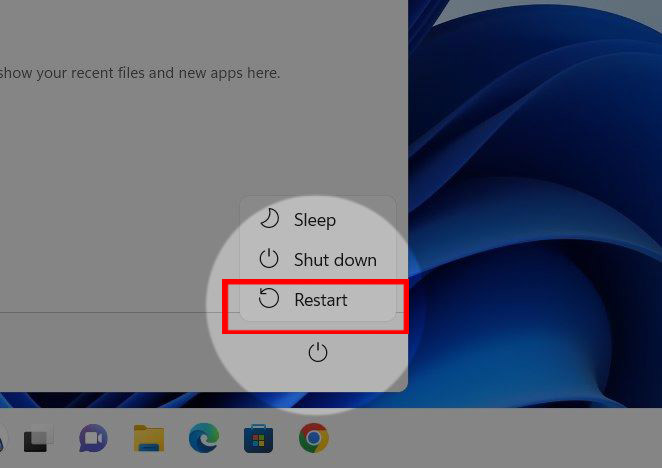
- Click the Start button (Windows icon) in your taskbar.
- Click the Power icon.
- Select Restart.
- Wait for Windows to fully reboot.
✅ After reboot, your RAM usage will drop to baseline (typically 2–4 GB on a clean system).
⚠️ Warning: Save all open work before restarting! Unsaved documents will be lost.
When to Use This Method
- Your PC hasn’t been restarted in days or weeks
- You notice consistent lag across all apps
- Windows feels “heavy” or unresponsive
📊 Fun Fact: According to Microsoft, 90% of minor performance issues are resolved with a simple restart.
Method 2: Clear RAM Cache Windows Using Task Manager to End High-Memory Processes
Best for: Targeted RAM cleanup when specific apps are hogging memory.
Sometimes, one misbehaving app (like Chrome, Edge, or a background updater) can consume 3–6 GB of RAM by itself. Task Manager lets you identify and kill these culprits instantly.
Step-by-Step Instructions
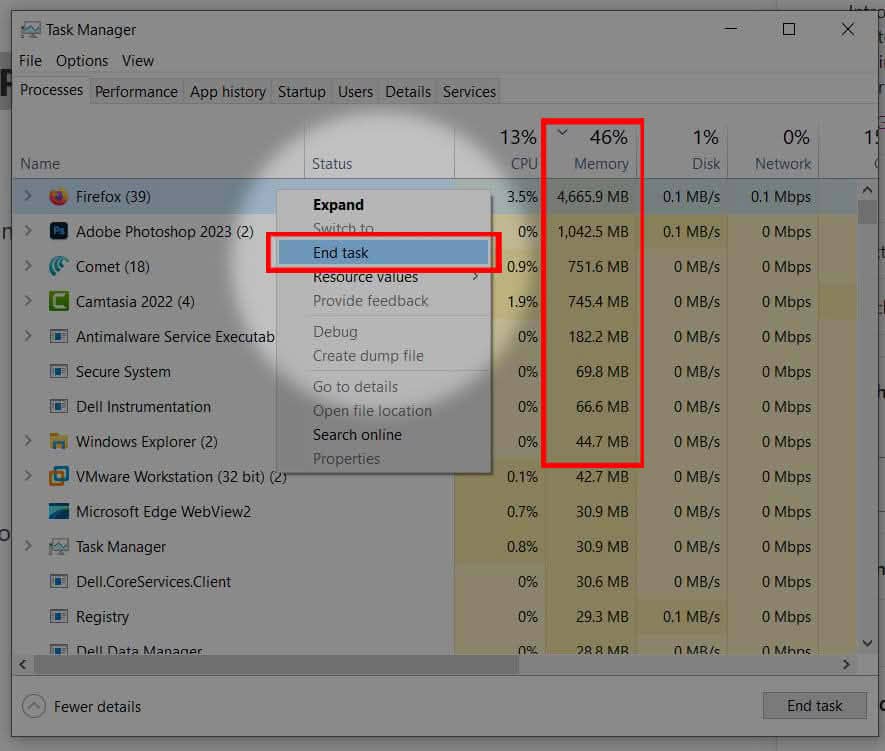
- Press Ctrl + Shift + Esc to open Task Manager.
- Click the Processes tab.
- Click the Memory column header to sort apps by RAM usage (highest first).
- Look for non-essential apps using excessive memory (e.g., old browser tabs, unused software).
- Right-click the process → End task.
- Repeat for other unnecessary processes.
✅ RAM is freed immediately—no restart needed.
❗ Critical Warning: Never end processes under “Windows processes” or “Background processes” unless you’re 100% sure. Terminating system processes can crash Windows.
Pro Tips
- Use “Details” tab for deeper process inspection.
- If an app keeps reappearing, check Startup apps (in Task Manager > Startup tab) and disable it.
Method 3: Clear RAM Cache Windows with a Cleanup Script (.BAT File)
Best for: Quick, no-restart memory refresh using a built-in Windows command.
This clever trick uses a hidden Windows API to force the OS to release idle memory and clean up background tasks—all without closing your apps.
How It Works
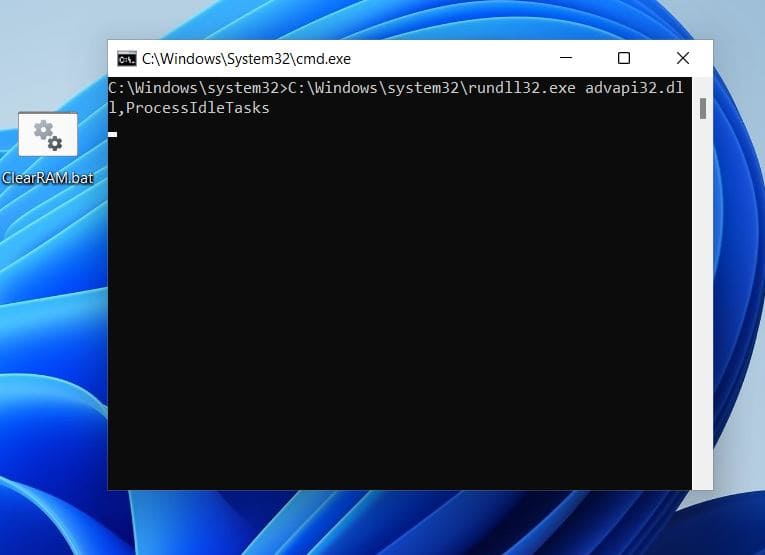
The command %windir%\system32\rundll32.exe advapi32.dll,ProcessIdleTasks tells Windows to:
- Run idle maintenance tasks
- Release unused RAM pages
- Flush stale cache entries
It mimics what Windows does during low-memory situations—but on demand.
Step-by-Step Instructions
Step 1: Open Notepad
- Press Win + R, type
notepad, and hit Enter
OR - Search for “Notepad” in the Start menu and open it.
Step 2: Paste the Cleanup Command
Copy and paste this exact line into Notepad:
%windir%\system32\rundll32.exe advapi32.dll,ProcessIdleTasks
Step 3: Save as a .BAT File
- Click File > Save As
- Set Save as type to All Files
- In File name, type:
ClearRAM.bat - Save it to your Desktop (for easy access)
Step 4: Run the Script
- Right-click
ClearRAM.bat - Select Run as administrator
- Wait 5–15 seconds—you’ll see a brief command window flash
✅ Done! RAM cache is cleared, and idle memory is released.
💡 Bonus: Pin this
.batfile to your taskbar for one-click RAM cleanup anytime.
Method 4: Clear RAM Cache Windows with RAMMap – Microsoft’s Advanced Memory Tool
Best for: Power users who want granular control over memory management.
Developed by Mark Russinovich (CTO of Microsoft Azure) and part of the Sysinternals suite, RAMMap is a free, official Microsoft tool that shows you exactly how Windows uses every byte of RAM—and lets you clear specific memory types with one click.
Why RAMMap?
- See file-based cache, driver memory, process working sets, and more
- Clear Standby Memory (the largest cache that often causes slowdowns)
- Save/load memory snapshots for troubleshooting
- No installation required (portable .exe)
📘 RAMMap is referenced in the Windows Internals book—the definitive guide to Windows architecture.
Step-by-Step Instructions
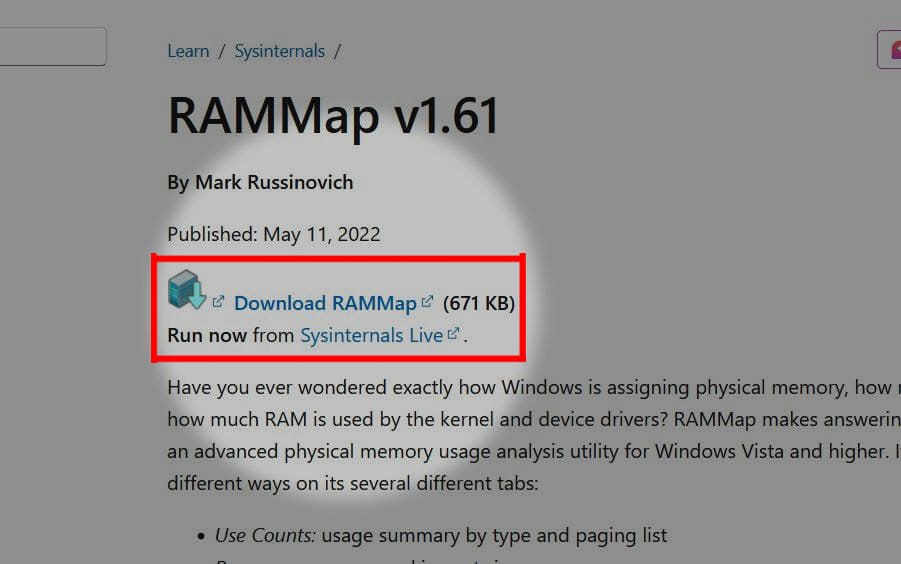
Step 1: Download RAMMap
- Go to the official download page:
https://learn.microsoft.com/en-us/sysinternals/downloads/rammap - Click Download RAMMap (671 KB ZIP file)
Step 2: Extract the ZIP
- Locate the downloaded
RAMMap.zip - Right-click → Extract All…
- Open the extracted folder
Step 3: Run as Administrator
- Right-click RAMMap.exe
- Select Run as administrator
- Click Agree to the license
Step 4: Clear Standby Memory
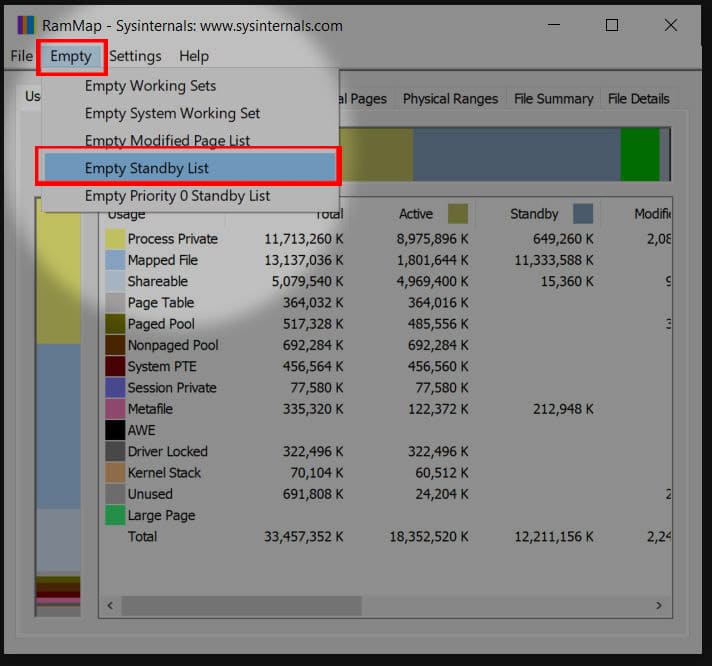
- In RAMMap, click the Empty menu at the top
- Select Empty Standby List
✅ Instantly frees gigabytes of cached RAM—often 2–10 GB on busy systems!
🔍 What is Standby Memory?
Standby memory holds cached file data that could be reused. But if your RAM is full, this cache blocks active apps from getting memory. Clearing it gives your current apps priority.
Which Method to Clear RAM Cache Windows Should You Use?
| Scenario | Best Method |
|---|---|
| General slowdown after days of use | Method 1: Restart PC |
| One app using too much RAM | Method 2: Task Manager |
| Quick refresh without closing apps | Method 3: BAT Script |
| Maximum control & detailed insight | Method 4: RAMMap |
✅ Pro Workflow:
Use Method 3 (BAT script) daily for light maintenance.
Use Method 4 (RAMMap) weekly for deep cleanup.
Restart (Method 1) once a week for full system hygiene.
Clear RAM Cache Windows: Frequently Asked Questions (FAQ)
❓ Does clearing RAM cache delete my files?
No. RAM cache only holds temporary data. Your documents, photos, and settings are stored on your drive and remain untouched.
❓ Is it safe to clear Standby Memory with RAMMap?
Yes. Windows will automatically reload needed cache from disk as you use apps. It’s safe and recommended for performance tuning.
❓ Why does my RAM fill up again quickly after clearing?
This is normal behavior. Windows uses free RAM for caching to improve speed. If active apps need memory, Windows releases the cache automatically. Clearing it manually just gives you an instant performance boost.
❓ Do I need 16GB+ RAM to benefit from these methods?
No. Even systems with 8GB (or less) benefit—especially when multitasking or using memory-heavy browsers.
Final Thoughts: Clear RAM Cache Windows for Peak Performance
Clearing your RAM cache is one of the fastest, safest ways to breathe new life into a sluggish Windows PC. You don’t need expensive hardware upgrades or third-party “cleaner” software (which often do more harm than good).
With these four proven methods, you now have a full toolkit to:
- Diagnose memory hogs
- Free up gigabytes of idle RAM
- Improve system responsiveness
- Extend the life of older hardware
🔄 Make it a habit: Run your
.batscript or RAMMap once a day during heavy work sessions. Your PC—and your productivity—will thank you.
🔗 Helpful Resources
- Download RAMMap (Official Microsoft Page)
- Windows Internals Book (by Mark Russinovich)
- Defrag Tools: RAMMap Episode (Video Tutorial)
Optimize. Accelerate. Repeat.
When you clear RAM cache Windows regularly, your PC becomes noticeably faster and more responsive. Your Windows PC is more powerful than you think—you just need to give it room to breathe.
Got questions? Drop them in the comments below! 💬
Nice balance of theory and practical advice. Well done!
I very delighted to find this internet site on bing, just what I was searching for as well saved to fav
Great mix of research and practical application. Very helpful.
A concise guide with practical steps — very helpful indeed.
I appreciate the step-by-step instructions. They made implementation easy.
Good insights and practical suggestions. Thanks for publishing this.
I truly appreciate your technique of writing a blog. I added it to my bookmark site list and will lüleburgaz nakliyat firması
This helped me rethink my strategy. Thanks for the inspiration!